How to use Conference Park
An online platform for industry, academia, and government where medical-field needs meet the technologies and companies that solve them. If this is your first visit, start here to get the big picture.
What you can do on this site
Press a card to open a live-screen guide that walks you through the feature on the real screen (sample data). To go to the actual page, press “View …” on each card.
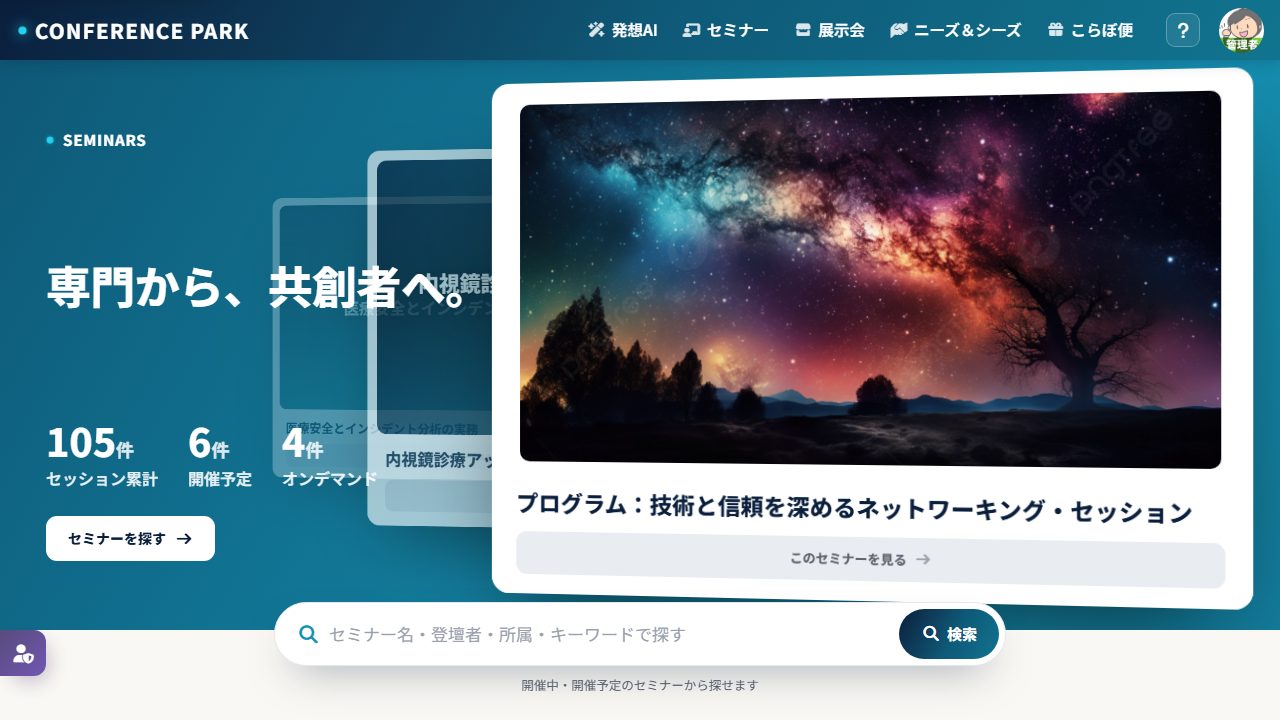 How-to guide
View seminars
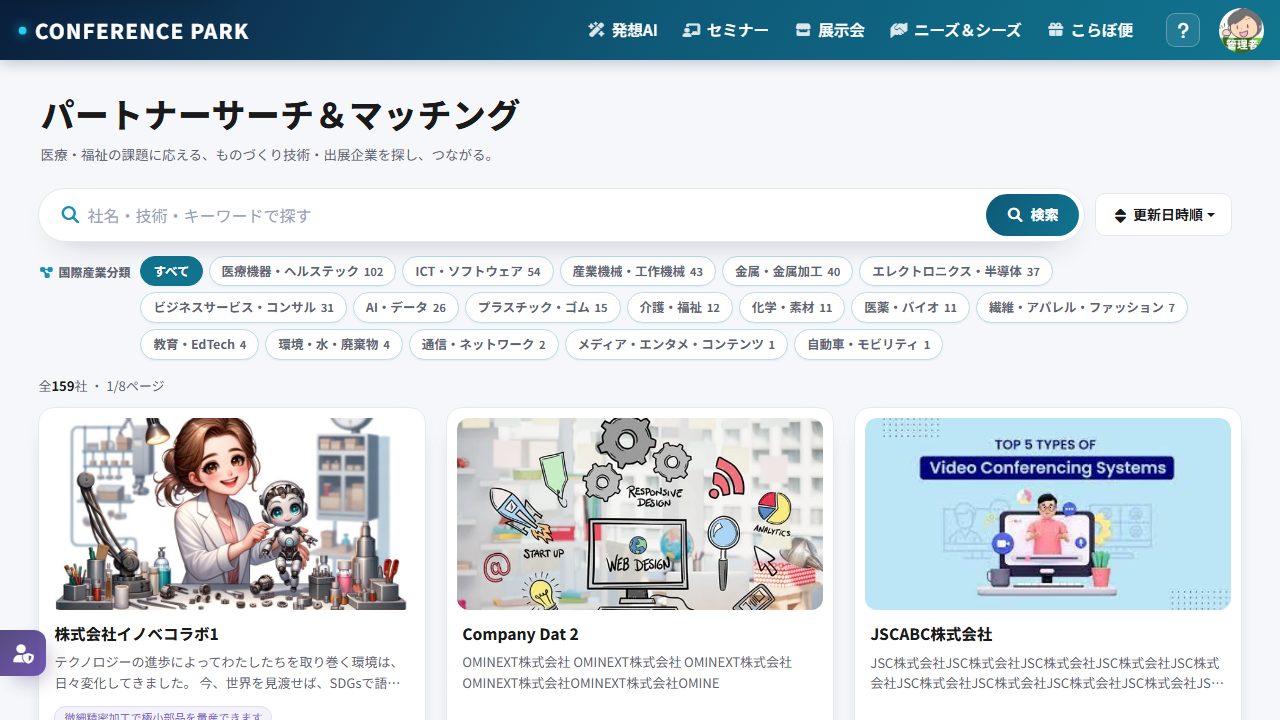 How-to guide
Partner Search & Matching
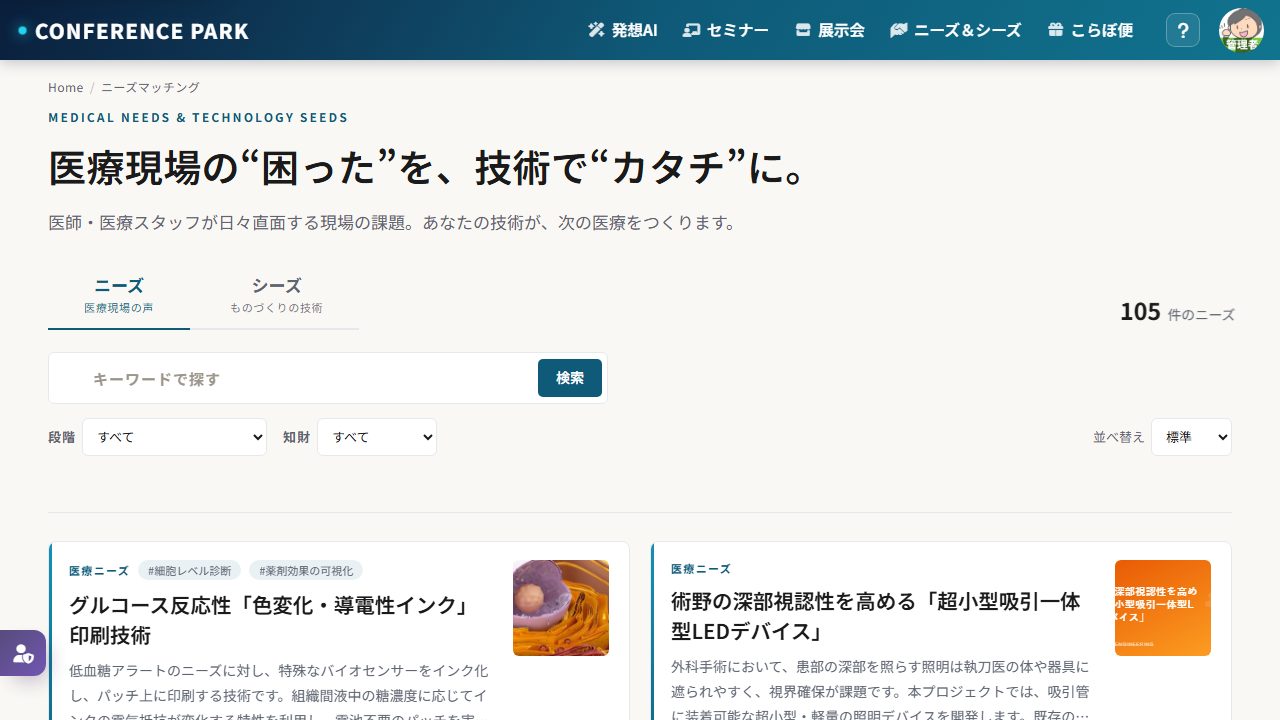 How-to guide
View Needs matching
Matching potential with your company
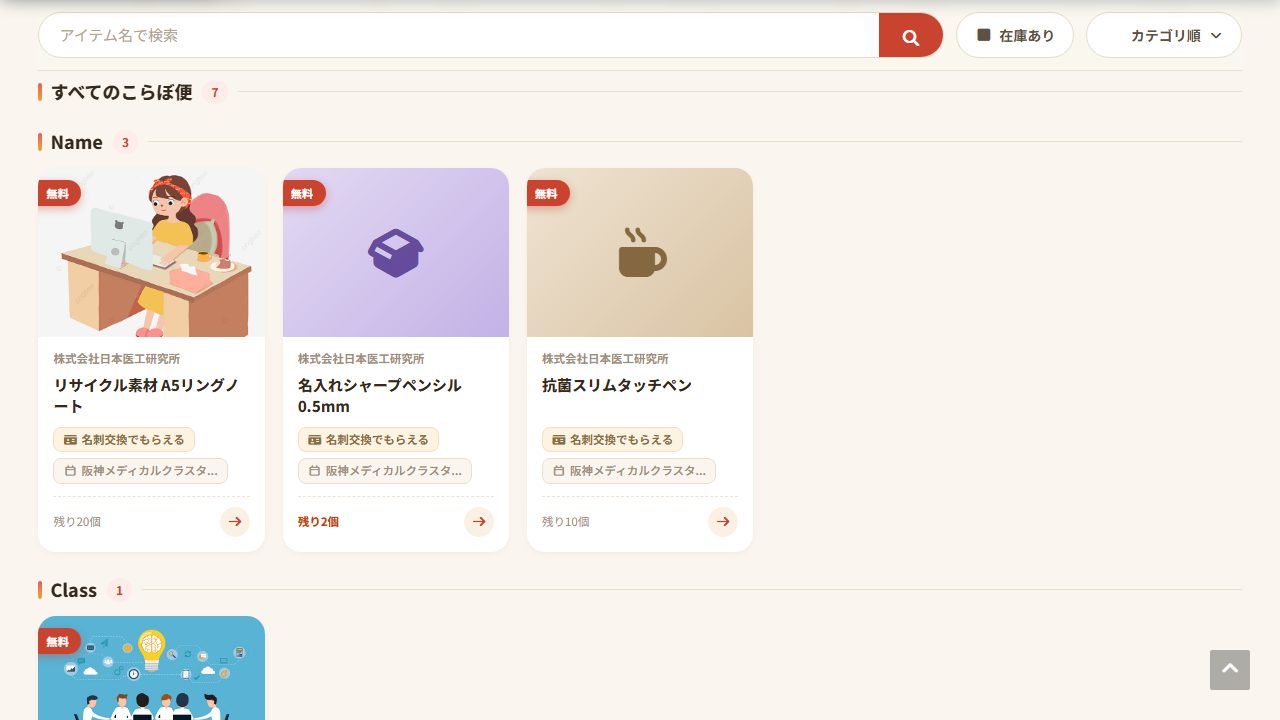 How-to guide
View Collab Delivery
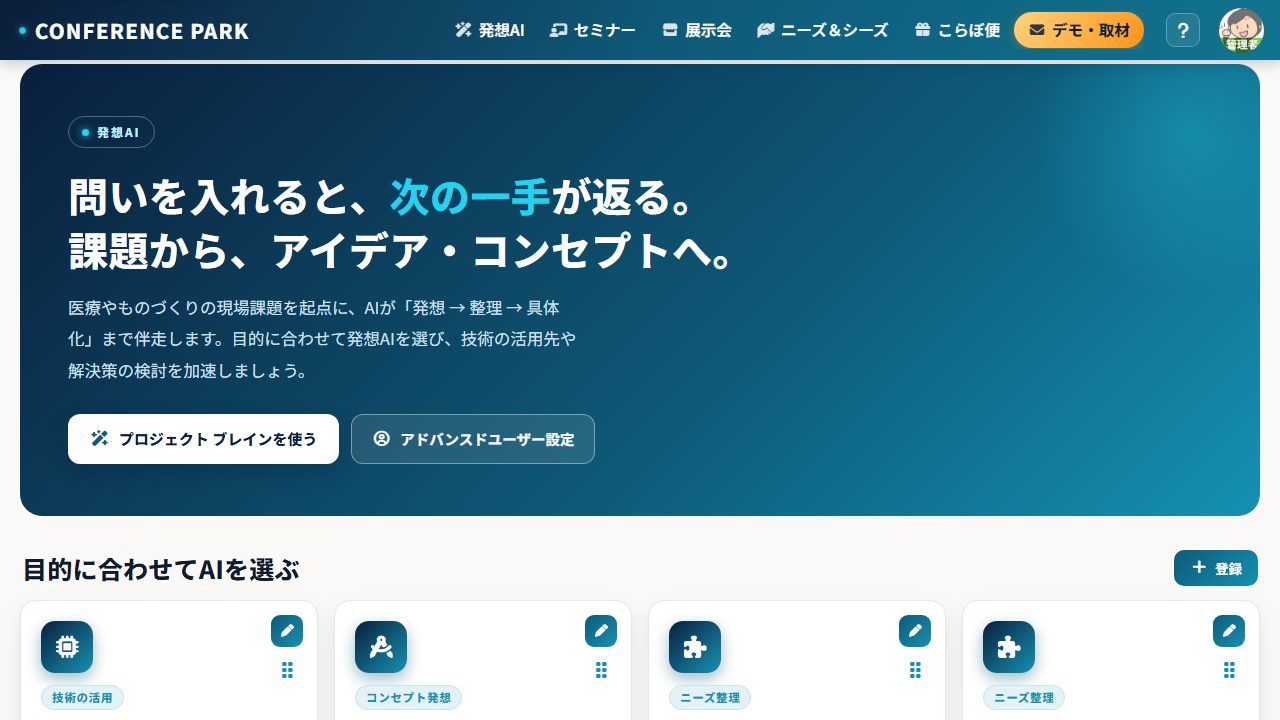
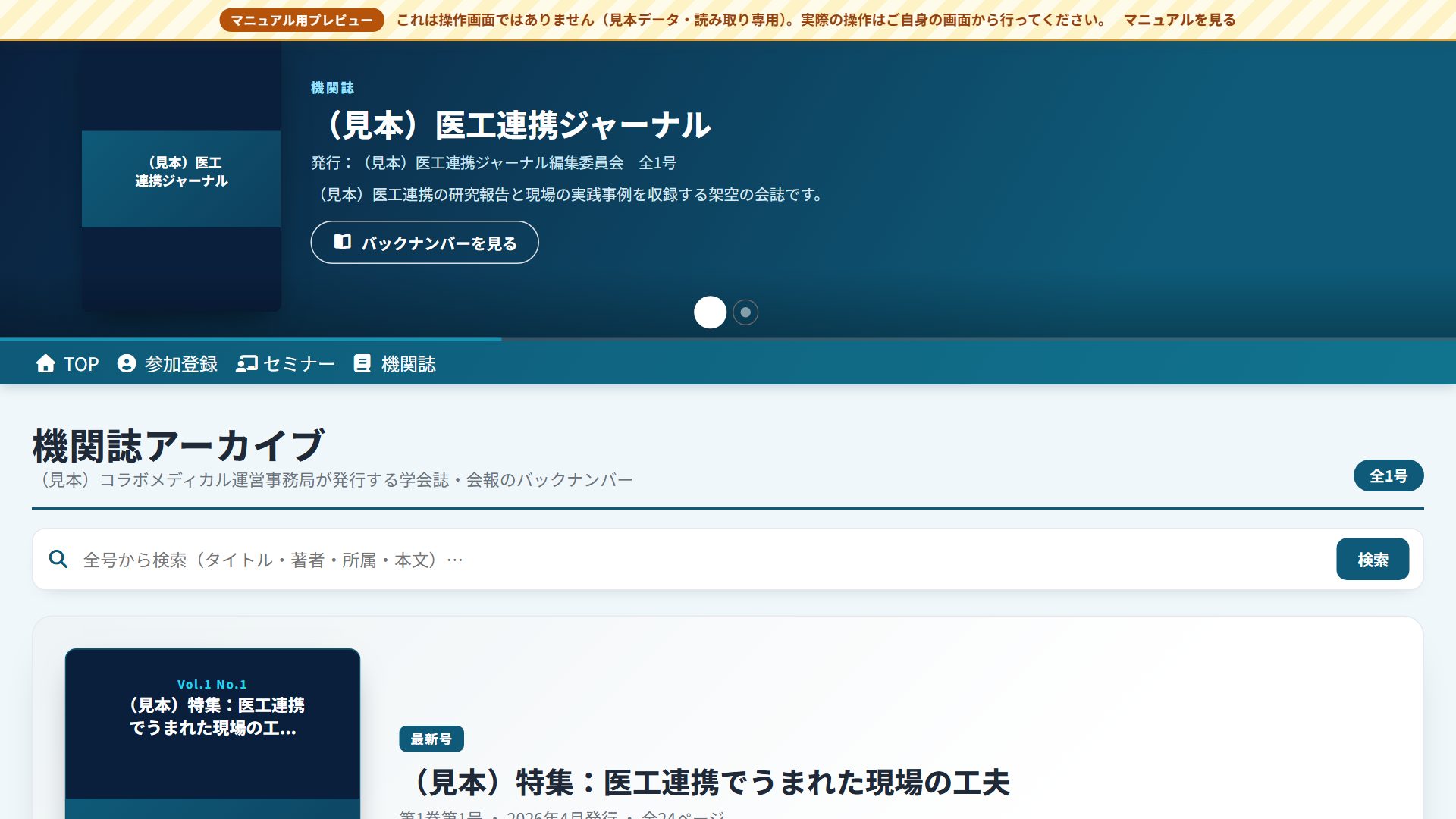
Getting started in 3 steps
Browsing lists requires no account. Free membership is required to watch, apply, or connect.
- Membership registration (free)Browsing lists requires no registration, but viewing, applying, exchanging business cards, and using the Ideation AI require free membership registration.
- SearchOn each page (Seminars / Exhibition / Needs matching / Collab Delivery), filter by keyword or field.
- View, apply, and networkWatch seminars, apply for colabo deliveries, and exchange business cards with exhibitors. You can also use the Ideation AI to organize challenges and brainstorm ideas.
Learn more
Open only the topics you'd like to read.
Recommended use by role
We introduce recommended ways to use the site for your role.
- Complete the free membership registration
- Find and watch seminars
- Research field challenges and technologies in Needs matching
- Apply for novelties you like in Collab Delivery
- Exchange business cards and network with exhibitors within the conference
- Use Needs to find challenges your technology can solve
- Track other companies' activities in Exhibition & exhibitors
- Handle business card exchanges and inquiries from visitors
- If you wish to exhibit or be listed, please contact the operator
- Understand field challenges and existing technologies in Needs matching
- Check reference information such as related research and market data
- Use Ideation AI for idea generation and organizing challenges
- For collaboration or listing inquiries, contact the operator
What you can do with an account
- Browsing the lists of Seminars, Exhibition, Needs matching, and Collab Delivery
- Watching seminars
- Applying for Collab Delivery items
- Exchanging business cards and networking with exhibitors
- Using the Ideation AI
- Reading the journal (society journal / bulletin)
- Manage messages (Messenger), meetings, Collab Delivery application history, shipping addresses, and more on My Page.
- Auto-translation in Messenger: when the other party uses a different language, messages are automatically translated into your language (view the original with one tap, with line-by-line side-by-side translation).
- Switch the display language (Japanese / English) and time zone (account menu).
You can register multiple email addresses. If you use several addresses (e.g., work and personal), you can add a secondary email from My Page > Profile. Click the confirmation link sent to that address to activate it, and you can then sign in with any of them. This prevents accidentally creating two separate accounts with different emails. * If you previously registered with a different email and your applications or tickets ended up split, please contact the organizer and we can merge them into a single account.
To change your sign-in email address, open the email change page, enter the 6-digit code sent to your current address, then open the link sent to the new address. If you can't use your current address, you can verify with an authenticator app, a recovery code, or a confirmed sub email address. If you have none of these, you can change it from your usual device after a 72-hour waiting period (you can cancel while waiting).
Multilingual profile (native language / English)
You can register your profile in both your native language and English. Once you add English, people viewing the site in English will see your name, affiliation, and more shown automatically in English (making business-card exchange and networking with overseas contacts smooth). Fields with no English are shown in your native language, just as before.
How to set up your English profile
- Open My Page > ProfileIn the "Multilingual information" area, the native-language and English fields are shown side by side.
- Enter native language and EnglishEnter your name, affiliation, department, job title, address, and so on in both the native-language and English fields.
- Draft with AI translation (optional)Use the "AI translation" button on each field to create an English draft from your native language in one click (you can edit the result freely; availability depends on your environment).
- SaveOnce saved, people viewing in English will see your English profile.
Where English is shown
- Participant search, lists, point rankings, and meeting-survey lists
- The display of your counterpart in business-card exchange, messenger, and other interactions
- Automated emails (the names and affiliations of counterparts and participants are shown in the recipient's language)
You can switch the display language (Japanese / English) at any time from the account menu at the top right of the screen.
Per-event profile
In each conference (event), your base profile is used as is (inherited). Only when you choose "Attend this event with a different name/affiliation" can you override it for that event. Normally, simply keeping your base profile up to date is enough.
Joining and paying dues
If a member organization such as an academic society, association or group manages its membership on Conference Park, you can do everything on this one screen — from applying to join to paying your annual dues and obtaining invoices and receipts. Notices and questions about dues stay in the chat, so you can read them again later.
From joining to payment
- Choose a member type and applyRegular, associate, student and other types are shown together with their annual dues. Types with a free period say so as well.
- Wait for the secretariat to reviewAfter you apply, the secretariat reviews your details. You can follow the status on this screen until the review is finished.
- Choose a payment methodYou can choose between credit card and bank transfer. The amount you pay is the same either way.
- Get your invoice and receiptYou can download them yourself at any time. You can also change the receipt addressee to your employer or laboratory name.
You can also set your yearly renewal to automatic. Register a card once and later years are paid automatically, and reminders about payment stop arriving. You can stop it at any time, and even after stopping you can keep using your membership until the end of the period you have already paid for. If a payment does not go through, the reason appears on the screen and in the dues chat.
If your employer has joined as a corporate or organizational member, one contract may include several people. In that case the annual dues are invoiced to the representative in a single bill and nothing is sent to you (your roster, voting and other rights still follow the settings of your member type).
If you wish to leave, you can submit a request from this screen. The request first goes to the secretariat, and you can withdraw it to avoid misunderstandings.
How-to guide
Digital business card (design your own)
Choose from 100 templates to beautifully design your business card (My Page → “Digital business card”). The contents reflect your Profile settings, and you can switch between native / English / both, choose what to include (photo, phone, address, URL, email), and set the icon shape (auto / circle / square).
From creating to sharing
- Choose a templateChoose your favorite from 100 designs. It's reflected instantly in the preview on the left.
- Set the language, what to include, and the icon shapeChoose native / English / both, what to include (photo, contact details, etc.), and the icon shape (circle / square).
- SaveOnce saved, it's used in your My Page card band and when exchanging cards.
- Share via “Show & hand over”Display a large 2D code for the other person to scan, and your contact details are saved to their phone (they can also download a vCard).
Register your own needs and ideas (Secure Needs Registration)
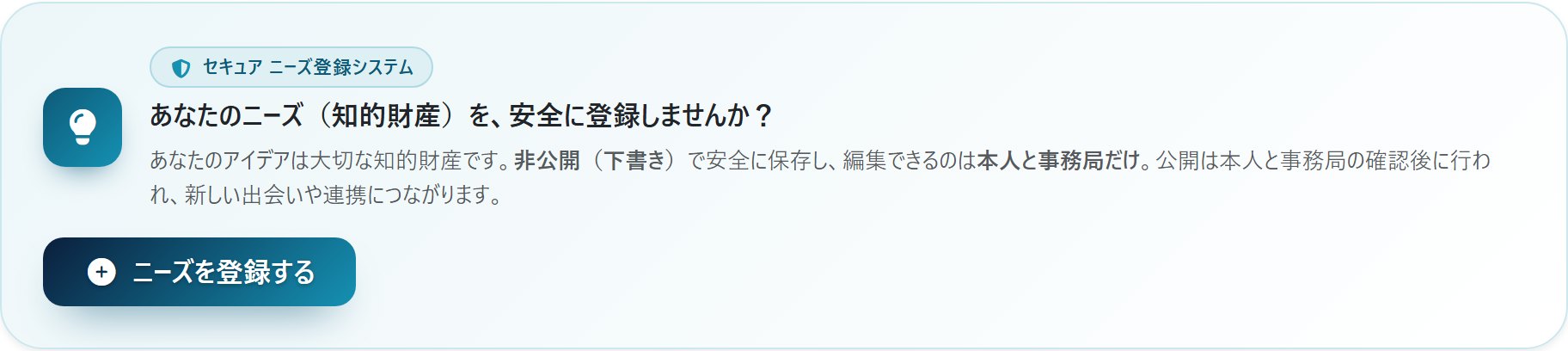
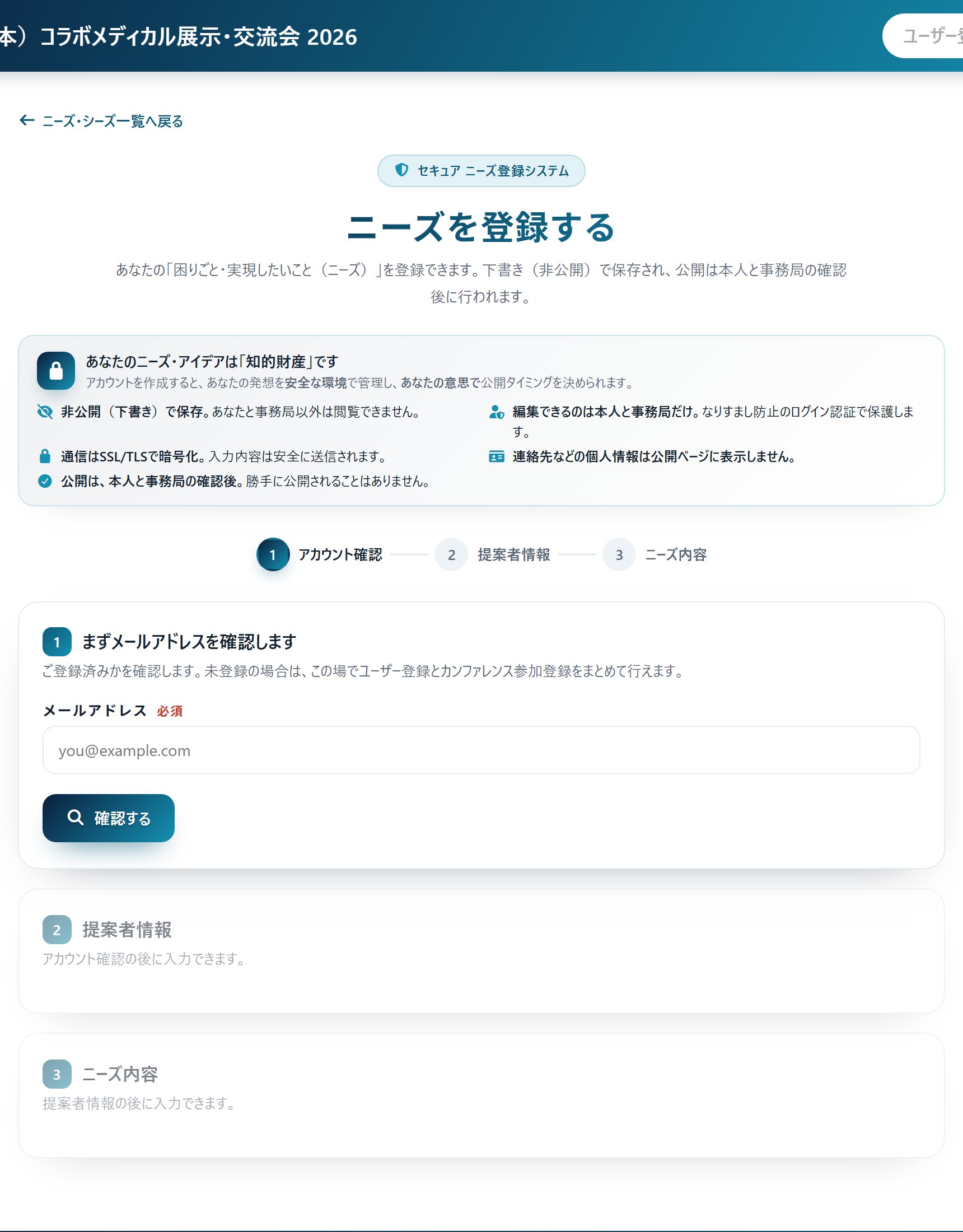
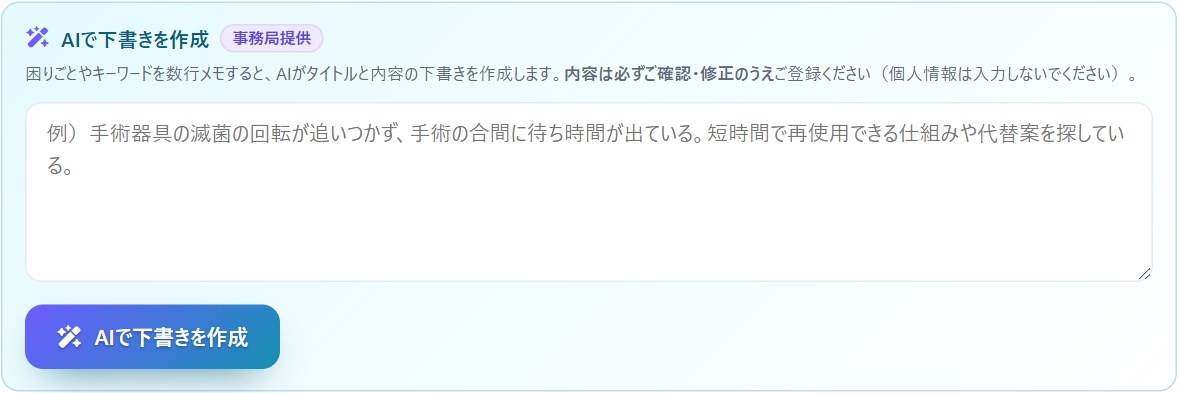
You can register yourself a need such as "I want to solve this challenge," or a seed (technology/product) you can offer. Needs and ideas are valuable intellectual property. As a "Secure Needs Registration System," they are safely stored privately (as a draft), and publishing is done only after confirmation by you and the office. Even if you are not registered, you can complete free membership registration on the spot.* The images shown are samples (fictional).
Collab Delivery status and receipt
You can request exhibitors' technical samples, materials, and thank-you gifts (Collab Delivery) for free. Once you apply, your Collab Delivery Box on My Page shows the delivery status (application received → preparing shipment → shipped). When shipped, the carrier and tracking number appear, and when it arrives, press “Received” to let the providing company know your thanks.
Register your delivery address (domestic & overseas)
You can register your Collab Delivery address from “Delivery address” on My Page. When you choose a country/region, domestic switches to auto-fill of prefecture and postal code, and overseas switches to free entry of state/province. Overseas delivery addresses are supported too.
Reply to invitations you have received
When the organizing office of a conference or an exhibitor's staff invites you, you receive an email, and the invitation appears under "Invitations received" on My Page. Press "Join" to join, or press "Decline" to not join. Invitations are valid for 7 days.
Receive meeting invitations from exhibitors
Turn on Receive invitations from exhibitors in the exhibition hall or seminar venue, and exhibitors may send you meeting invitations. Your name stays hidden until you accept.
View updates and maintenance schedules
Accept or decline a meeting request
When an exhibitor sends a meeting request, the reply deadline and Accept / Decline appear above the conversation. Your name stays hidden until you accept. When declining you can pick a reason (or decline without one).
Reply to requests you received (experts)
If you are registered as an expert, projects can send you consultation requests. Press Accept to use the requester's CP; 80% of it is yours. Press Decline to turn it down.
Career & Résumé
Keep your career, papers and grants in one place, and export them in forms for faculty hiring, society membership, KAKENHI and more.
When conference emails stop arriving
If you report an email as spam in your email app, emails stop reaching that address. Conferences whose emails no longer reach you are shown under “Newsletter” on My Page. Only the conferences you press “Resume” for will start sending again.
Get seminar announcements
Press "Get announcements" on a seminar page to receive announcement emails one week, one day and one hour before it starts. You can press it when logged in, even without a ticket. Even if you have stopped the newsletter, announcements for seminars you chose or pre-registered for still arrive.
Sign up and register for a seminar
Seminars that companies and organizations hold at their own venue require you to sign up (log in) before registering. On the seminar page, press “Log in to register (free)” or “Sign up”; when you are done, you return to the seminar page. Then press “Register (free)” to complete your registration.
Glossary
- Conference
- A unit of online hosting for each academic society or study group. It contains seminars, exhibitions, needs, Collab Delivery, and more. The list page shows conferences for which global display is enabled.
- Seminars
- Talks and sessions. Live streaming and on-demand (catch-up) streaming are available; viewing requires membership registration.
- Exhibition & exhibitors
- Introductions to exhibiting companies and their products and technologies.
- Needs
- The "troubles" of the medical field—challenges that doctors and medical staff want to solve.
- Seeds
- Technologies held by companies and research that can solve challenges.
- Collab Delivery
- Free novelties (giveaways, free shipping / delivered) offered by exhibiting companies. Apply after membership registration (application conditions may vary by the ticket you hold; subject to stock and distribution period).
- Idea AI
- An AI that supports idea generation and organizing challenges from medical-field issues. Use requires membership registration, and some features are a paid subscription (30-day free trial available).
AI-generated content such as the background of needs and stakeholder voices is generated by generative AI (Google Gemini) based on limited information. We do not guarantee the accuracy or reliability of the content.
FAQ
Is it free to use?
Browsing lists and membership registration are free. You can also apply for Collab Delivery novelties with free shipping. Some seminars may require participant registration to view. Some Ideation AI features are a paid subscription (30-day free trial available).
Where do I set my password when registering?
After you register, a confirmation email arrives. Open the link in the email and set your password to complete registration. If the link has expired, use “Forgot your password?” on the login screen to set it the same way.
I entered the verification code wrong too many times and can no longer enter it
After 5 wrong entries, that code can no longer be used for security reasons, and no new code is sent for 15 minutes. After 15 minutes, press “Resend” on the verification code screen to receive a new code.
What can I do without registering?
You can browse the Seminars, Exhibition, Needs matching, and Collab Delivery lists without logging in. Viewing, applying, exchanging business cards, and using the Ideation AI require free membership registration.
What is "Collab Delivery"?
They are free novelties (giveaways) offered by exhibiting companies. They are delivered with free shipping. Choose items you like and apply. Application requires membership registration; conditions may vary by the ticket you hold, and items are subject to stock and distribution period.
Can I use the Ideation AI for free?
Use requires membership registration. In addition to basic features, some features require a paid subscription (a 30-day free trial is available).
What is the difference between "Needs" and "Seeds"?
Needs are challenges in the medical field; seeds are technologies from companies and research that can solve them. You can switch the display on the list page.
I would like to exhibit or be listed.
If you wish to exhibit or be listed, please contact the operator from the About this system page.
If this does not solve your problem, you can check how to use each screen with the "How to use" button at the bottom right of each page.
About this system